Set up exams and candidates
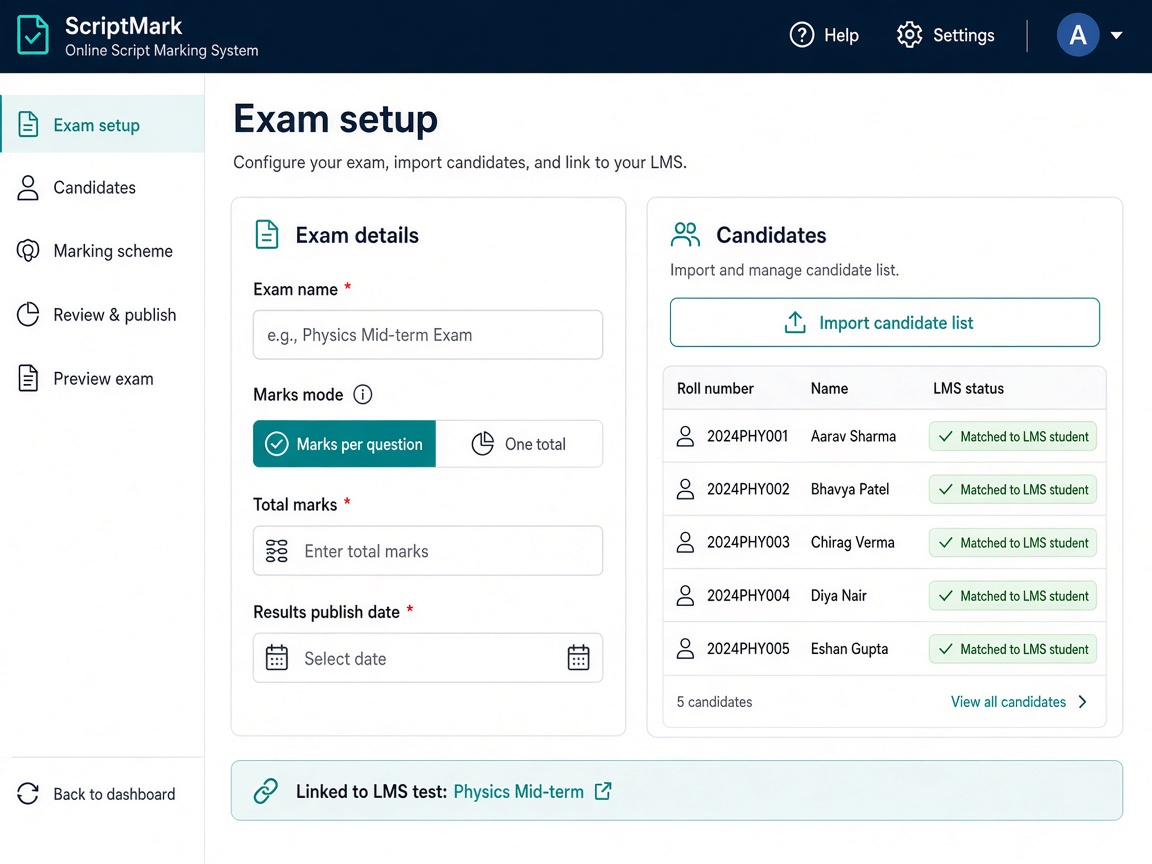
Create each exam, choose how marks are given, import your candidate list, and decide when results can be published. Link an exam to a test you already run in Next Learner LMS.
- Marks per question, or one total for the paper
- Choose when results are published
- Import a candidate list and match it to your LMS students
- Link an exam to an existing LMS test
Run the exam office from one place
Set up each exam before papers arrive—how marks work, when results go live, and how the session is organized.
One screen per exam
Upload materials, manage the candidate list, see reports, and control how scripts move through stages—all under that exam.
How marks are given
Use a full rubric with marks per question, or one total mark for the whole paper. Pick what matches your marking guide.
Open, run, and close cleanly
Move exams through draft, live, and archived. Schedule the date and time when results may be published.
Filter by your academic structure
When you use year, semester, degree, stream, or specialization in Next Learner, filter and report OSM work the same way.
Know which script belongs to which student
Import your roster, link booklets after scanning, and keep markers focused on barcodes—not names—while they mark.
Import the candidate list
Bring candidates in from a spreadsheet. Match each row to a student already in the LMS when you use both products.
Barcodes on every script
Each answer script is identified by a barcode—often the upload folder name, or a booklet code from bundle inventory.
Absent and unlinked lists
See who was on the roster but has no booklet, and which booklets are not linked yet. Fix gaps before results go out.
Link to an LMS test
When you already run the test in Next Learner LMS, connect the OSM exam so setup, candidates, and results stay in one flow.
More Next OSM features
Bundles & logistics
Set up exam centers, register sealed packets, print barcodes, and know what has been sent, received, and stored—before scanning starts.
scannerScan & upload
After Next Scanning exports packages ready for OSM upload, complete digital intake here—then OSM QC, QC approval, and evaluation workflows.
assignment_indAssignment & pipelines
Show clear queues, assign answer scripts by hand, build marker teams and step-by-step marking plans, and support double marking when your policy requires it.
drawMarking on screen
Examiners read scanned handwritten answer sheets on screen, write notes on the page, enter marks per question or one total, save and continue later, and send a script back to quality check if needed.
auto_awesomeOCR & AI help
Turn long handwritten answers into readable text, and get optional AI suggestions for marks. The examiner always decides.
summarizeResults & reports
Dashboards show progress and bottlenecks; export results to Excel or CSV; publish marks to students on the portal or a simple lookup when you enable that option.
paymentsMarker payments
Set pay rates per marker, preview totals before you pay, approve a payment batch, and export files for finance—based on scripts actually marked in the system.
securitySecurity & audit
Each customer's data is kept separate. People only see what their role allows, and an audit log shows who did what and when, including any change made in a recheck.
See Exam setup in a live demo
We will show this step for your exam office—however many centers, scripts, and markers you run.
Request a demo